Witty.ca - Mr. Rich's Professional Archives

  • Home
    • Lunch
    • Support
    • Intro
    • Cyber
    • Newest
    • Hour of Code
  • Courses
    • DMS 2023-2024 >
      • Tech and Design 6
      • Tech and Design 7
      • Tech and Design 8
    • -----------------------
    • DMS Archive 2022-2023 >
      • Tech and Design Grade 6 2022-2023
      • Tech and Design Grade 7 2022-2023
      • Tech and Design Grade 8 2022-2023
    • DMS Archive 2021-2022 >
      • Tech and Design Grade 6 2021-22
      • Tech and Design Grade 7 2021-22
      • Tech and Design Grade 8 2021-22
    • HCS Archive 2015-2016 >
      • HCS'15 Media Studies 120
      • HCS'15 Nutrition for Healthy Living 120
      • HCS'15 Visual Art 9
      • HCS'16 Intro to Electronics 110 >
        • Purchasing a Computer in 2016 >
          • HCS'15 Visual Art 110/120
      • HCS'16 Housing & Design 120
      • HCS'16 Visual Arts 10
      • HCS Winter Decoration Ideas
    • HCS Archive 2014-2015 >
      • HCS'15 - Digital Production 12
      • HCS'15 - Graphic Art & Design 11
      • HCS'15 - Media Studies 12
      • HCS'15 - Visual Art 10
      • HCS'14 - BBT 10
      • HCS'14 - Info Tech 11/12
      • HCS'14 - Visual Art 9
      • HCS'14 - Visual Art 11/12
      • HCS Art Club
      • HCS Announcement Text
    • HCS Archive 2013-2014 >
      • HCS'14 - English 12
      • HCS'14 - Graphic Design 11
      • HCS'14 - Individual & Family Dynamics 12
      • HCS'14 - Info Tech 12
      • HCS'14 - Social Studies 8
    • Student Introduction Form
  • Tech Units
    • Safety & Citizenship >
      • Work Place Safety
      • Digital Safety & Citizenship
      • Digital Communication
      • Digital Rights & Responsibilities
      • Digital Etiquette
      • Digital Wellness
      • Digital Business
      • Digital Access
      • Digital Literacy
      • Digital Law
    • Scratch Coding >
      • Scratch Explained
      • Scratch 3 - Crossy Road 1
      • Scratch 3 - Crossy Road 2
      • Scratch 3 - Teacher Notes
      • OLD - Scratch 2 (Coding) >
        • Scratch 2 - Introduction to Coding
        • Scratch 2 - How to
        • Scratch 2 - Introduction
        • Scratch 2 - Frogger (p1)
        • Scratch 2 - Frogger (p2)
        • Scratch 2 - Frogger (p3)
        • Scratch 2 - Frogger (p4)
        • Scratch 2 - Frogger (p5)
        • Scratch 2 (Coding) >
          • Scratch 2 - A 2nd Project
          • Scratch 2 - Teacher Notes
          • Scratch 2 - Choosing another language
      • OLD - Scratch 1 (Coding) >
        • Scratch 1 (Coding)
        • Scratch (Scripts 1 & 2)
        • Scratch (Script 3)
        • Scratch (Frogger)
        • Scratch (Frogger 2)
        • Scratch (Frogger 3)
        • Scratch (Frogger 4)
        • Scratch Mini-Challenge 1
        • Scratch Final Project
        • Notes for Teachers >
          • Teaching Scratch
    • Graphic Design with Inkscape >
      • Graphic Design Overview
      • Inkscape Act.1
      • Inkscape Act.2
      • Inkscape Act.3
      • Inkscape Act.4
      • Inkscape Act.5
      • Inkscape Act.6
      • Inkscape Bonus Challenge
    • Photoshop with The GIMP >
      • GIMP Overview
      • GIMP Install & Setup
      • GIMP Activity 0
      • GIMP Activity 1
      • GIMP Activity 3
      • GIMP Activity 4a
      • GIMP Activity 4b
      • GIMP Activity 6b
      • GIMP Activity 6e/f
      • GIMP Final Project - Cereal-Box
      • GIMP Final Project - Magazine Cover >
        • HCS'16 Graphic Art & Design 110
      • GIMP Bonus Assignment
      • GIMP Marking Breakdown
      • Raster Graphics Explained
      • Old GIMP Activities >
        • GIMP Activity 2
        • GIMP Activity 6a
        • GIMP Activity 6c
        • GIMP Activity 6d
    • Excel
    • Sewing
    • Audio / Video >
      • Videography
      • Sound (Audacity)
      • Video (One Minute PSA)
      • Make a Movie Trailer
      • Blender Video Editor - Test
    • Automotive >
      • Auto - Careers
      • Auto - Engines
      • Auto - 4-Stroke vs 2-Stroke
    • Coding - Teacher Start
    • Python (Coding) >
      • Python - CS 110 PD - July 2016
      • Python - CS 110 PD Part 2 (Projects)
      • Python - CS 110 PD Part 3 (GUI)
      • Install Python 3.5 + PyGame
    • Design (AutoCAD) >
      • Design Act. 1
      • Design Act. 2
      • Design Act. 3
      • Design Act. 4
      • Design Act. 5
      • Design Act. 5b and 5c
      • Design Act. 6
      • Design Act. 7
      • Design Act. 8
      • Design Act. 9
      • Design Act. 10
      • Design Act. 11
      • Design Act. 12
    • Design (Sketchup) >
      • Sketchup House Setup
    • Portable Apps >
      • Cam Studio
      • Virtual Dub
      • Scratch (and Zip File for Students)
      • TuxPaint (and Zip File for Students)
      • TuxTyping (and Zip File for Students)
      • Google Chrome
    • Project Management >
      • Intro to Project Mgmt.
      • Assignment for Project Management
    • Database >
      • Tasks Database
    • Final Projects and Exam Review >
      • Final Project - BBT 10 - 2015
      • Final Project - Digital Production 2015
      • Final Project - Media Studies 2015
      • Exam Review 2013
    • Cybersecurity
  • Art Units
    • Elements and Principles >
      • Elements of Art
      • Principles of Design
    • Photographic Composition
    • Visual Art 9
    • Graphic Art & Design 110 >
      • Colour Theory
      • Layout
      • Fonts and Type
    • Visual Art 110
    • Previous Box Projects - Visual Art 10
  • Other Units
    • Housing >
      • How to Design a House
    • Media Studies >
      • Media Studies Handouts
      • What is media? Why study media?
      • Film, Television and Video
      • Advertising, Marketing and You
      • Media and the Internet
      • Self-Study Project
    • Nutrition >
      • Recipes >
        • Black Bean Cake and Cupcake
  • Sports
    • Volleyball >
      • Volleyball Contact
      • (Old) NMS Volleyball 2019
      • (Old) Volleyball 2017
      • (Old) Volleyball Spring 2016
      • (Old) 2016 Tournament - MS Boys Volleyball
      • (Old) Volleyball Spring 2015
      • (Old) 2015 Tournament - MS Boys Volleyball
    • Soccer >
      • (Old) Soccer Fall 2015
    • Basketball
  • Blogs
    • Computer Science Blog
    • Personal Blog
  • Contact
  • About
    • About Mr. Rich
    • About Technology and Computer Science
  • Archives
    • Teaching Software >
      • Purchasing a Computer (notes) >
        • Purchasing a Computer
        • Computer Scenarios
        • Computer Presentation
        • PAC Test Instructions
        • PAC Peer Review
        • How to Submit Computer Comparisons
        • How to Submit Computer for Helen
      • Scratch 2 (Coding)
      • Scratch 1.4 (Programming)
      • ARCHIVED - GIMP (Raster Graphics)
      • ARCHIVED - Inkscape (Vector Graphics)
      • AutoCAD (2D Design)
      • Sketchup (3D Design) >
        • Google Sketchup (2011)
        • Google Sketchup (2012)
      • Excel vs Calc (Spreadsheet)
      • Cam Studio (Screen Capture Videos)
      • TuxPaint (for young kids)
      • TuxTyping (Typing Tutor)
    • Links >
      • Career Links in Fredericton
      • Job Hunting Tips
    • Presentations >
      • Scratch Workshop Oct 11, 2013
      • Scratch Workshop Sept 18, 2013
      • Math for French Immersion
    • Software That Is No More >
      • Setup (for an older version of Weebly) >
        • Setup - Day 1
        • How To Setup Your Weebly Pages
        • Marks (link to Canvas)
        • Web Portfolio
    • Previous Teaching >
      • Old Teacher's Logs >
        • Teacher's Log 2015-2016
        • Teacher's Log 2014-2015
        • Teaching Notes - Hartland 2014
        • BBT9 Teacher's Log (Apr-June2013)
        • BBT9 Teacher's Log (Jan - Apr 2013)
        • BBT9 2012
      • Sept2010-Jan2012 >
        • Old Home
        • Middle School >
          • Literacy
          • Social Studies 6
          • Social Studies 7 >
            • Online Test - Canada at Confederation
      • Jan2012-Nov2012 >
        • Book Blog >
          • Blog to Book
        • About Mr Rich
    • PD Sessions >
      • BBT9-10 Oct6 2016
      • BBT Teachers PD (Jan 2013)
      • Cyber-bullying (May 2013)
Mr. Rich's Vector Graphics: Intro - Act. 1 - Act. 2 - Act. 3 - Act. 4 - Act. 5 - Act. 6 - Extra

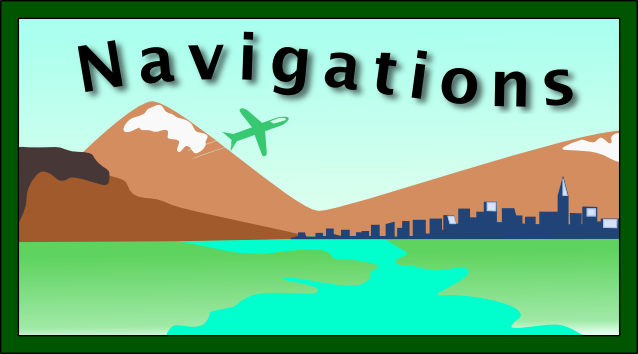
Business Card (Landscape) - Activity #4

Making your own business card with landscape background!

Lots of Layers!  Awesome detail!

For this activity, you will create a business card with  a landscape background.

Please follow the videos below as you build this activity.
Picture
Activity #4

Setup...

First, if you've never used Layers in Inkscape, then watch this video

I've added this video to show:
  • layering with layers
    (move layers up or down)
  • layering within layers
    (send objects back or forward)

(This video is just a demonstration of layers 
and is not part of assignment #4.)

open youtube video in another tab

#1. Building a Border

Start with a border that will hide our imperfections.  

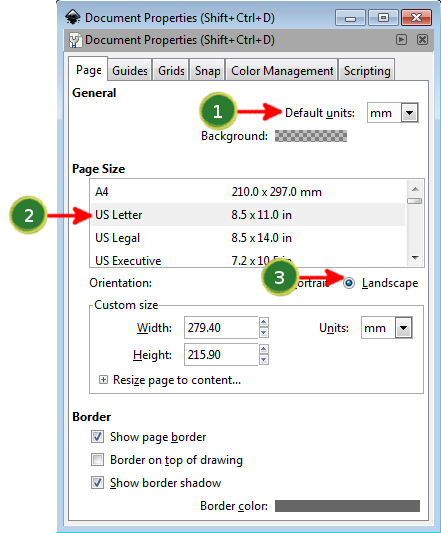
First, set the document up:
--> File
----> Document Properties
------> "mm" (top dropdown)
------> "US Legal"
------> "Landscape"
(then exit the popup window)
Picture
Document Properties Popup

Then, create the border:
  1. Use the rectangle tool to draw a rectangle.
  2. Click the top Black Arrow tool and keep the rectangle selected.
  3. In the top toolbar, change the rectangle dimensions:
    - Width = 180
    - Height = 100
  4. Fill this rectangle with dark green.
  5. Duplicate this rectangle and fill it with light green
  6. Resize the light green rectangle to:
    - Width = 170
    - Height = 90

open youtube video in another tab
Picture
Select both rectangles
Click the ALIGN tool button to open the Align window.

Picture
When the Align Options window opens, center the selection both vertically and horizontally.
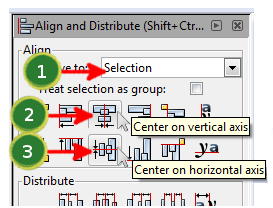
Picture
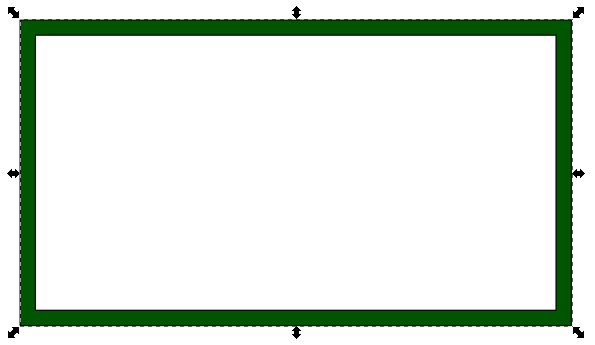
Now, we want to remove the center of the rectangles (which is why we call it the "border").
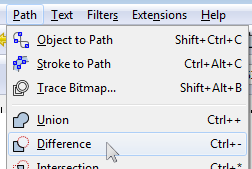
  • First, we need to select both rectangles.
  • Then, in the top main menu bar, choose "Path" and select "Difference".
Picture
You should now have this:
Picture

#2. Grass and Sky

Add basic shapes for grass and sky!
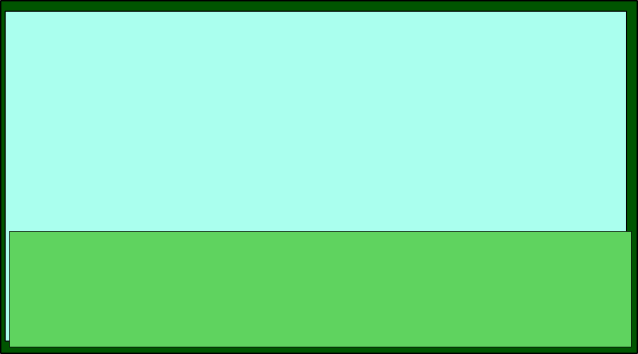
  • Draw 2 rectangles.
  • The edges of the rectangles should go over the border (for now, as we'll raise the border later).
  • Set the fill for these rectangles to "grass" and "sky" colors.
  • Put each rectangle on it's own layer.  ("Grass" and "Sky" layers)
Picture
Grass & Sky rectangles overlap with the border. (We will raise the border later.)

open youtube video in another tab

#3. Mountains

Add mountains between the grass and sky.

Make sure your mountains have snow!

What you will draw is something like this:
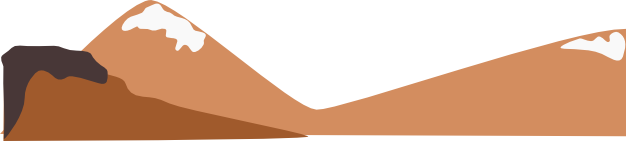
Picture
When you add this to your drawing, it looks like this:
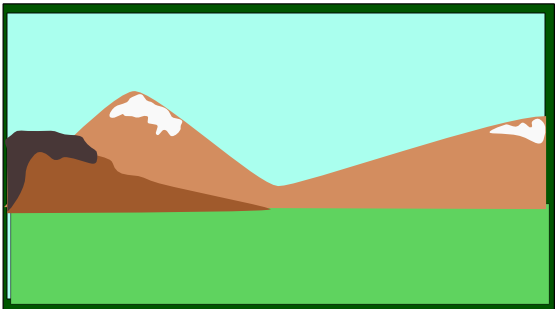
Picture
Mountains on top of the border. (We will raise the border later.)

open youtube video in another tab

#4. City

Add a city-scape with highlights.

Draw a dark blue city:
  • Draw it as one piece
    (white highlights added later)
  • Use the Bezier tool
  • Hold down "Ctrl" key while clicking to create nodes.  This will give straight lines at perfect angles.

What you will draw is something like this:

Picture
When you add this to your drawing, it looks like this:
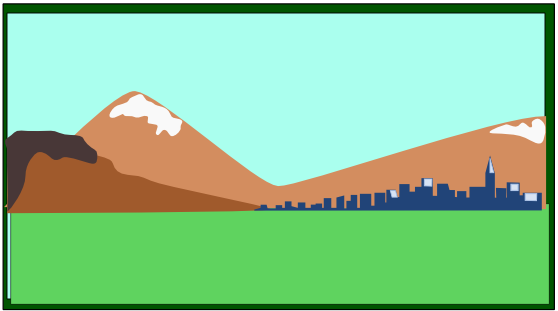
Picture
City and other elements still on top of the border. (We will raise the border later.)

open youtube video in another tab

#5. Adjustments

How do you make changes?

First, adjust your city and mountains so they aren't floating in the air.

At this point, you must change your mountain colors.

open youtube video in another tab

#6. River

Add a river to the foreground.

What you will draw is something like this:

Picture
When you add this to your drawing, it looks like this:
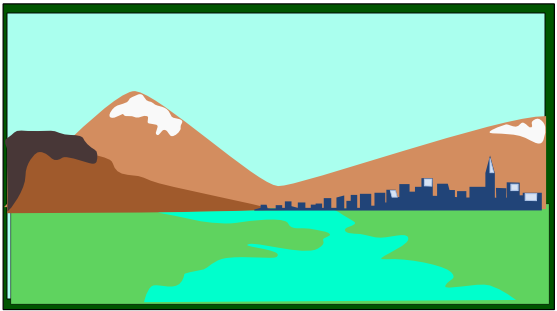
Picture
River still on top of the border. (We will raise the border later.)

open youtube video in another tab

#7. Plane

Make the plane too large and then scale it smaller later.


Picture
When you add this to your drawing, it looks like this
(and you can also raise your Border layer to the top now):
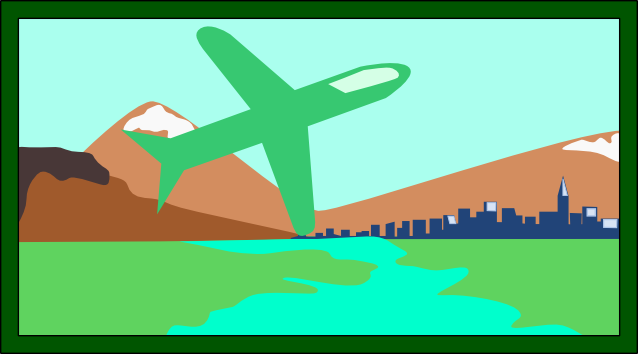
Picture
Plane too big still.
Next, select the plane (including highlight) and scale it smaller, like this.
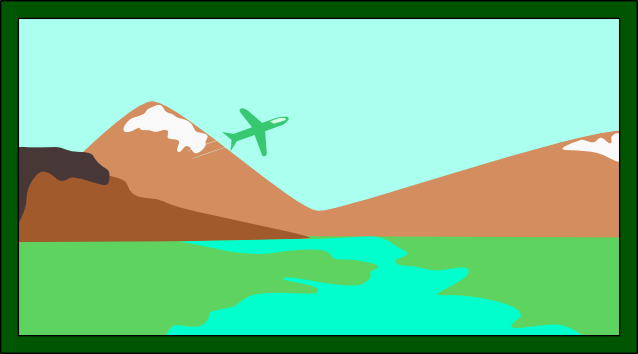
Picture
Plane just right. (We can raise the border now!)

open youtube video in another tab

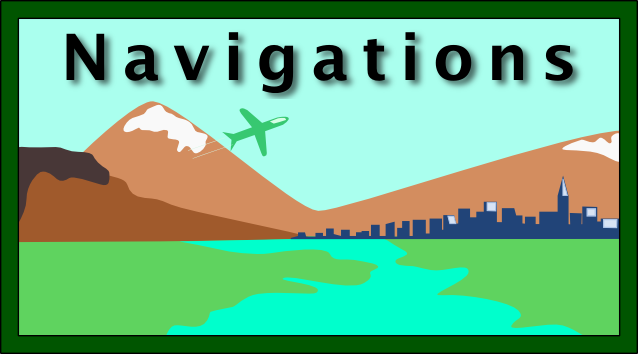
#8. Text and Shadow

Add text (the name of the company).

When the text is selected, apply a shadow filter.

--> Filters
----> Shadows and Glows
------> Drop Shadow


(Check the "Live Preview" box and experiment!  Then click "Apply" to set the shadow.)

Picture
When you add this to your drawing, it looks like this:
Picture

open youtube video in another tab

#9. Gradient

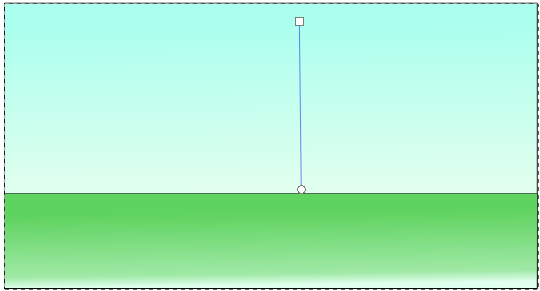
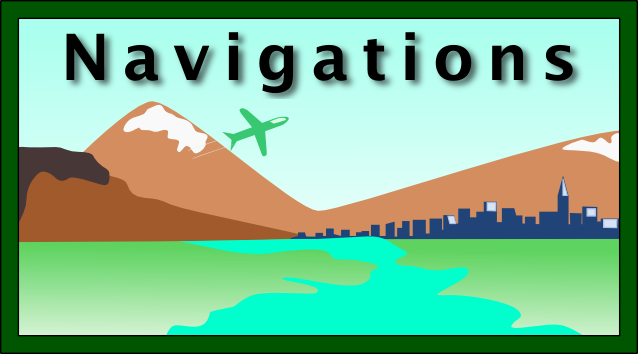
Add gradient to the sky and grass.  (In Inkscape, you can add gradient to anything!)

The gradient button is below the Bezier tool and the "A" text tool and it looks like this:
Picture
Experiment with clicking-and-dragging to get the effects below (Grass & Sky):
Picture
When you add this to your drawing, it looks like this:
Picture

open youtube video in another tab

#10. Text On Path

In the LAYERS window, 
  • Unlock the TEXT layer
  • Then click on the TEXT layer to make your changes on this layer.

Now:
  1. Make some text.
    (Use the "A" button below the Bezier button.)

  2. Draw a path (or shape).

  3. Select both text and line.

  4. Click "Text" (top main menu)
    Choose -> "Put On Path"
Picture
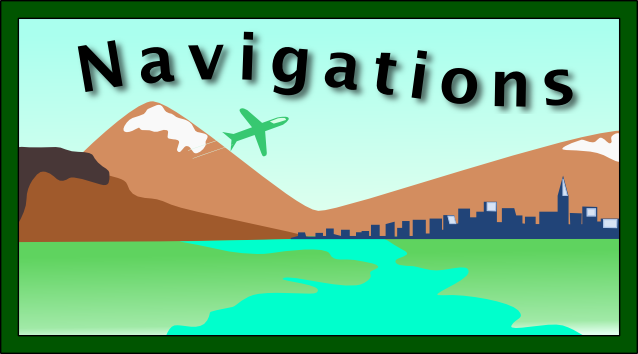
When you add this to your drawing, it looks like this:
Picture
Finished Product!

open youtube video in another tab

Save + Publish!

  • Save this as "activity-4-business-card.svg"
  • Choose "Export Bitmap" and then the "Drawing" this file as a PNG file ("activity-4-business-card.png")
  • Post both files on your "Vector Graphics" page (Weebly).  (The PNG should appear as a picture.)


Copyright © Graham Rich 2010-2023.   Site made using Weebly.com.